WhatsApp Auto-Reply: How to Set Up Keyword & Welcome Message Automation (2026)
A complete guide to WhatsApp auto-reply: welcome messages, away messages, and keyword-triggered automation for Indian businesses, with costs and setup steps.
Key Takeaways
- WhatsApp auto-reply sends an automatic message the moment a customer texts you — covering welcome greetings, after-hours away messages, and keyword-triggered replies.
- The WhatsApp Business App offers only basic greeting and away messages for up to 256 saved contacts; the WhatsApp Cloud API (used by PayPerWA) unlocks unlimited keyword automation, menus, and CRM-style routing.
- Replies inside the 24-hour customer-service window are free from Meta; PayPerWA still charges a flat ₹0.20 platform fee per automated reply.
- Set up keyword automation in five steps on PayPerWA — connect your number, define keywords, write replies, set fallbacks, and go live.
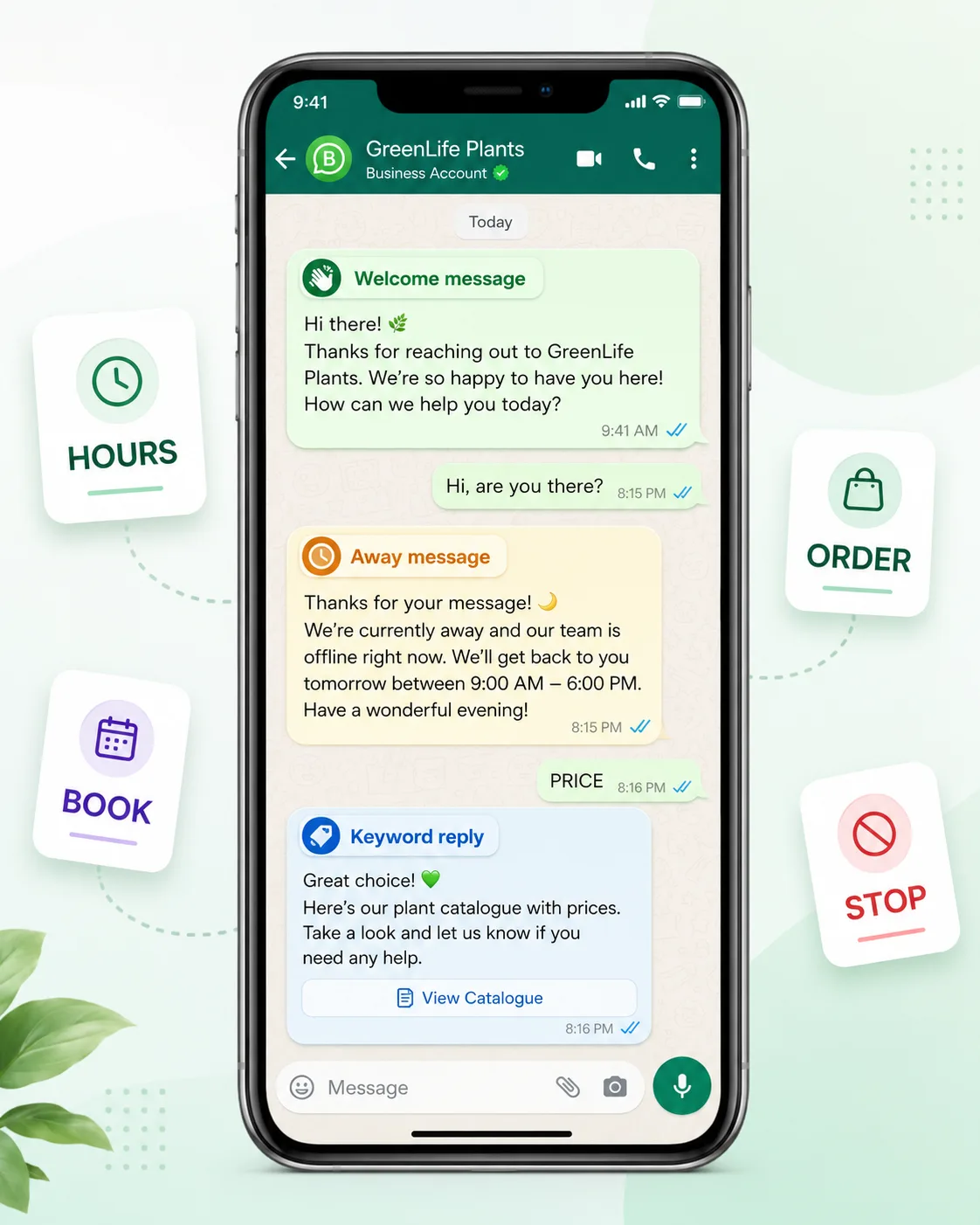
- Map high-intent keywords like PRICE, HOURS, BOOK, ORDER, and STOP to specific replies so customers self-serve 24x7 without staff.
What Is WhatsApp Auto-Reply?
WhatsApp auto-reply is an automatic message your business sends the instant a customer texts you, without anyone typing a reply. It removes the delay between a customer's question and your first response, which is the single biggest reason WhatsApp converts better than email or missed phone calls.
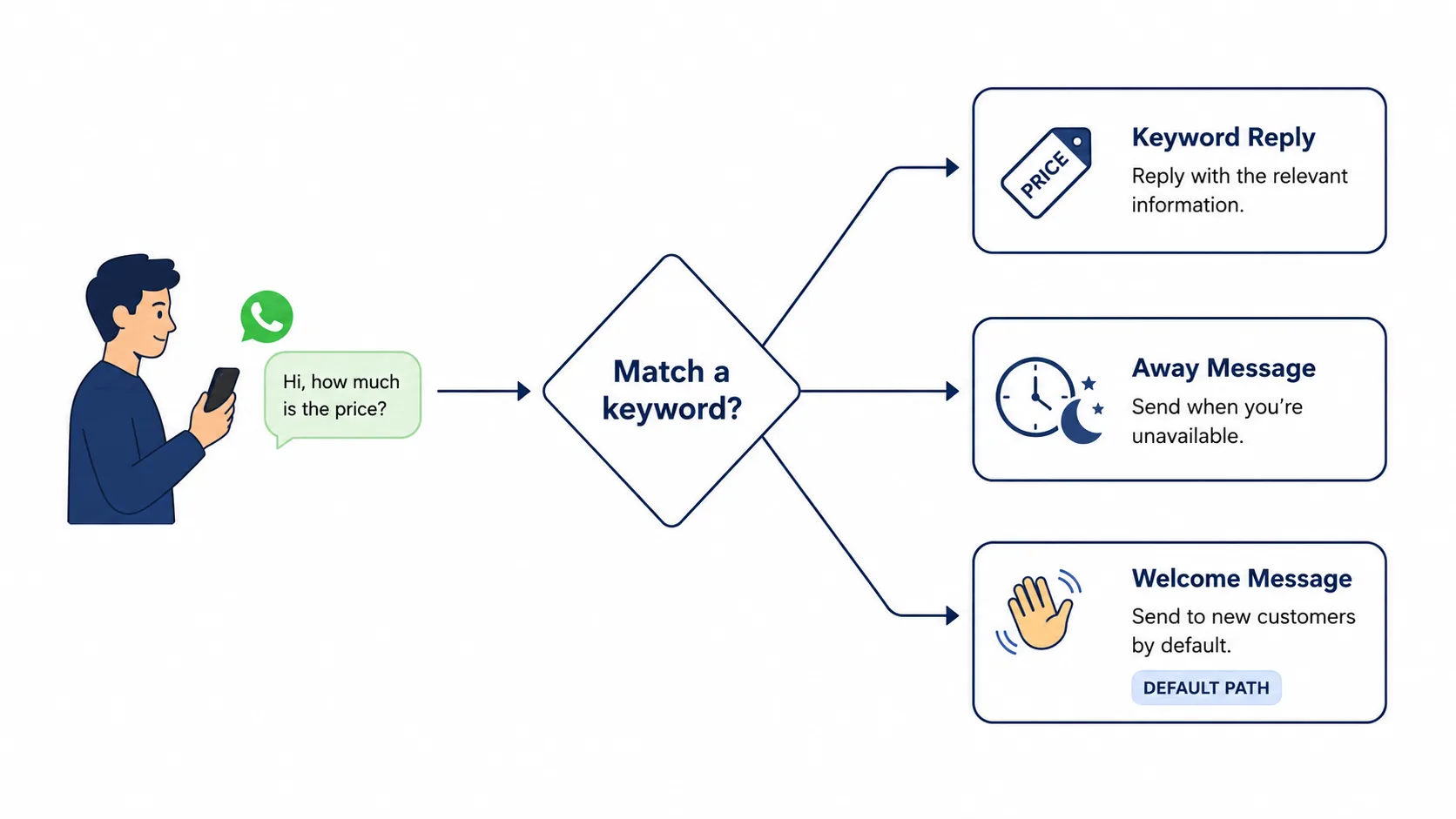
There are three core types of WhatsApp automatic reply that every Indian business should know:
- Welcome message — the greeting a first-time contact receives when they message you (for example, Namaste! Thanks for reaching out to Sharma Sweets. How can we help?).
- Away message — an after-hours or busy-time reply that sets expectations (for example, We are closed right now. We reply between 10 AM and 8 PM.).
- Keyword-triggered reply — a smart response that fires only when the customer's text contains a specific word like PRICE, HOURS, or BOOK.
Together these three turn your WhatsApp number into a 24x7 front desk that never sleeps, never forgets, and answers in under a second. For deeper sequences, auto-reply is the entry point to full WhatsApp marketing automation.
Why Indian Businesses Need WhatsApp Automatic Reply
Indian businesses need WhatsApp automatic reply because customers expect instant answers and 95%+ of WhatsApp messages are opened within minutes. When a buyer asks the price at 11 PM and hears nothing back until morning, they have already messaged a competitor.
Auto-reply solves four expensive problems at once:
- Lost after-hours leads. Most enquiries on WhatsApp arrive outside 10-to-6 office hours. An away message captures the lead and keeps them warm.
- Repetitive questions. Price, location, timings, and delivery charges are asked dozens of times a day. Keyword replies handle them with zero staff time.
- Slow first response. A reply that arrives in one second feels far more professional than one that arrives in two hours.
- Team bandwidth. Your staff can focus on closing sales instead of typing the same answer again and again.
For sectors with high enquiry volumes like e-commerce and clinics, auto-reply is the difference between a captured booking and a missed one.
WhatsApp Business App Auto-Reply vs Cloud API Automation
The WhatsApp Business App gives you only basic greeting and away messages, while the WhatsApp Cloud API unlocks unlimited keyword automation, menus, and routing. This is the most important distinction to understand before you build anything.
The free WhatsApp Business App (from the Play Store) supports a single greeting message, a single away message, and a handful of static quick replies. It works only for contacts who messaged you, caps broadcasts at 256 saved numbers, and has no keyword logic, no analytics, and no team access.
The WhatsApp Cloud API — which platforms like PayPerWA sit on top of — adds unlimited keyword-triggered replies, interactive button menus, contact tagging, automation that branches on what the customer types, and full delivery analytics. It scales to thousands of conversations and multiple agents.
| Capability | Business App | Cloud API (PayPerWA) |
|---|---|---|
| Welcome / greeting message | Yes (1 message) | Yes (unlimited, personalised) |
| Away / after-hours message | Yes (1 message) | Yes (schedule-based) |
| Keyword-triggered replies | No | Yes (unlimited keywords) |
| Interactive button menus | No | Yes |
| Team / multi-agent inbox | No | Yes |
| Analytics & delivery reports | No | Yes |
If you handle more than 30-40 enquiries a day, you need the API path. See the full breakdown on our features page.
How to Set Up WhatsApp Auto-Reply on PayPerWA (Step by Step)
You can set up WhatsApp auto-reply on PayPerWA in five steps, and the whole process takes about fifteen minutes. No coding is required.
- Connect your WhatsApp number. Sign up at payperwa.com/signup, complete the embedded WhatsApp onboarding, and verify your business number on the Meta Cloud API.
- Create your welcome message. In the Chatbot builder, set the first-contact greeting. Keep it warm, name your business, and tell the customer what to do next (for example, reply with a keyword).
- Add an away message and business hours. Define your working hours so the away message fires automatically outside them.
- Define keywords and their replies. Add trigger words like PRICE, HOURS, BOOK, ORDER, and map each to the exact reply or button menu the customer should receive.
- Set a fallback and go live. Add a catch-all reply for messages that match no keyword (for example, Sorry, I did not get that — type MENU to see options), then publish.
Because this runs on a no-code chatbot, you can edit any reply at any time. If you want full branching logic, read our guide to building a WhatsApp chatbot without coding.
15+ Keyword Auto-Reply Examples by Industry
The best keywords are short, intuitive words a customer would naturally type, mapped to a single clear action. Below are field-tested keyword examples across common Indian business types.
Retail & D2C
- PRICE → send price list or catalogue link
- ORDER → trigger order-taking flow
- TRACK → ask for order ID and share delivery status
- COD → explain cash-on-delivery availability
Clinics & Healthcare
- BOOK → start the appointment booking flow
- TIMINGS → share OPD hours and doctor availability
- REPORT → share lab-report collection details
Restaurants & Cafes
- MENU → send today's menu PDF or image
- TABLE → start a table-reservation flow
- OFFERS → share current discounts
Coaching & Education
- FEES → send fee structure
- DEMO → book a free demo class
- BATCH → share batch timings and seats left
Real Estate & Services
- VISIT → schedule a site visit
- BROCHURE → send the project brochure
- CALLBACK → capture number for a sales callback
Universal (every business should add these)
- HI / HELLO → show the main menu
- STOP / UNSUBSCRIBE → opt the contact out instantly (legally required — see our opt-in compliance guide)
Common Keywords and What They Should Do (Reference Table)
This table maps the most useful keywords to a recommended auto-reply action and the message type they typically use. Use it as a starting template for your own setup.
| Keyword | Auto-Reply Action | Message Type | Meta Fee |
|---|---|---|---|
| HI / HELLO | Show main menu with buttons | Session reply (in 24h window) | Free |
| PRICE | Send catalogue or price list link | Session reply | Free |
| HOURS | Share business timings | Session reply | Free |
| BOOK | Start appointment / reservation flow | Session reply | Free |
| ORDER | Trigger order-taking flow | Session reply | Free |
| TRACK | Send delivery / utility status update | Session reply | Free |
| STOP | Opt the contact out immediately | Session reply | Free |
Note: every row above is a reply inside the 24-hour window, so Meta charges nothing — but PayPerWA's flat ₹0.20 platform fee still applies per automated reply. The next section explains the costs precisely.
The 24-Hour Window and What Auto-Replies Cost
Auto-replies that fire inside the 24-hour customer-service window are free from Meta, and you only pay PayPerWA's flat ₹0.20 platform fee per message. This is the cheapest way to message on WhatsApp.
Here is how the billing works in practice, following our transparent split-pricing rule:
- Customer messages you first. This opens a 24-hour window. Any auto-reply you send back during that window has no Meta charge. Your cost is just PayPerWA ₹0.20 per reply.
- You message first with a template (a business-initiated welcome or promo before the customer texts). This is a template message, so Meta's rate applies. For a marketing template it is Meta ₹0.86 + PayPerWA ₹0.20 = ₹1.06. For a utility template it is Meta ₹0.13 + PayPerWA ₹0.20 = ₹0.33.
Most keyword and away replies happen after the customer texts you, so they fall inside the free window and cost only ₹0.20. Automated, drip, and flow messages are always billed at the ₹0.20 platform fee each; the Meta charge applies only to business-initiated template messages.
| Scenario | Meta Fee | PayPerWA Fee | Total |
|---|---|---|---|
| Keyword reply (in 24h window) | ₹0.00 | ₹0.20 | ₹0.20 |
| Away message (in 24h window) | ₹0.00 | ₹0.20 | ₹0.20 |
| Welcome template (business-initiated, marketing) | ₹0.86 | ₹0.20 | ₹1.06 |
| Utility template (e.g. order update) | ₹0.13 | ₹0.20 | ₹0.33 |
There is no subscription — see the full pricing breakdown. PayPerWA's wallet is prepaid, so when your balance hits zero, automation pauses until you recharge. That balance gate prevents surprise bills.
Best Practices for WhatsApp Auto-Reply
Effective auto-reply is fast, human-sounding, and always offers a way to reach a real person. Follow these rules to keep customers happy and stay compliant.
- Keep welcome messages short. One or two lines, your business name, and a clear next step beat a long paragraph nobody reads.
- Set honest expectations in away messages. Tell the customer your hours and exactly when they will hear back.
- Use buttons over typing. Interactive button menus convert better than asking customers to type a keyword correctly.
- Always include a human handoff. Add an option like Type AGENT to talk to a person so customers never feel trapped in a bot loop.
- Honour STOP instantly. A STOP keyword that opts the contact out is both good manners and a legal requirement.
- Personalise where you can. Use the contact's name in the greeting; it lifts engagement noticeably.
- Test every keyword. Send each trigger word from a test phone before going live to confirm the right reply fires.
For ready-made copy you can adapt, see our WhatsApp template message examples.
Mistakes to Avoid
The most damaging auto-reply mistakes are robotic tone, dead-end bots, and ignoring opt-outs. Avoid these and your automation will feel like an upgrade, not an annoyance.
- No human escape route. If a customer cannot reach a person, frustration spikes and trust drops. Always offer an AGENT option.
- Overlapping keywords. If PRICE and PRICES both exist with different replies, customers get inconsistent answers. Keep your keyword map clean.
- Sending marketing templates as the first message without opt-in. Messaging someone who never opted in risks Meta quality flags and account restrictions.
- Ignoring the fallback. Without a catch-all reply, off-keyword messages get silence. Always set a default response.
- Treating session replies like free broadcasts. Replies are free from Meta in the window, but PayPerWA's ₹0.20 still applies, and spamming customers will get you reported.
- Forgetting to handle STOP. Not processing opt-outs is a compliance failure — review the opt-in rules.
Getting Started Today
You can have WhatsApp auto-reply live before the day is over by signing up, connecting your number, and adding your first five keywords. Start small: a welcome message, an away message, and three keywords (PRICE, HOURS, and STOP) already cover the majority of incoming questions.
From there, layer in keyword menus, booking flows, and full WhatsApp Flows as your volume grows. Because PayPerWA charges only ₹0.20 per automated reply with no subscription, you can scale automation without scaling cost. When you are ready to chain multiple follow-ups together, move on to WhatsApp drip campaigns.
Create your free PayPerWA account and set up your first auto-reply in fifteen minutes — sirf 20 paisa per message.
Frequently Asked Questions
What is WhatsApp auto-reply?+
Can I set up automatic reply on WhatsApp Business for free?+
How do I set up a keyword auto-reply on WhatsApp?+
How much does a WhatsApp auto-reply cost?+
What is an away message on WhatsApp?+
Does WhatsApp auto-reply work without saving the customer's number?+
How do I let customers opt out of WhatsApp messages?+
Ready to Start WhatsApp Marketing?
No subscription. No monthly fee. Just ₹0.20 per message.
PayPerWA Team
We build India's most affordable WhatsApp marketing platform. No subscriptions, no hidden fees — just 20 paisa per message.