How to Build a WhatsApp Chatbot Without Coding (2026 Step-by-Step Guide)
Build a WhatsApp chatbot without coding in 2026 — a no-code drag-and-drop walkthrough with a real sample bot, keyword triggers, costs and human handoff.
Key Takeaways
- A WhatsApp chatbot is an automated assistant that replies to customers on WhatsApp 24x7 using rules — no human and no code needed.
- No-code builders use drag-and-drop blocks: message, question, button, condition and delay — you connect them visually like a flowchart.
- Keyword triggers fire when a customer sends a word; welcome triggers fire on the first message — most bots use both.
- Always add a human handoff so the bot can pass complex queries to a real agent instead of dead-ending.
- On PayPerWA, bot messages cost a flat ₹0.20 platform fee; Meta adds its fee separately only on business-initiated templates (Marketing ₹0.86, Utility ₹0.13, Auth ₹0.13).
What Is a WhatsApp Chatbot?
A WhatsApp chatbot is an automated assistant that talks to your customers on WhatsApp around the clock, answering questions and guiding them through tasks using a set of rules — without a human typing and without any code. When a customer messages your business number, the bot reads what they sent, matches it to a rule, and replies instantly with the right message, buttons, or next step.
Unlike a free WhatsApp account, a chatbot runs on the official WhatsApp Business API, which is what makes automation, buttons, and scale possible. A good bot feels like a fast, polite shop assistant: it greets new visitors, answers "what are your hours?" or "what's the price?" in under a second, takes orders or bookings through tappable buttons, and quietly passes anything tricky to a human.
In India, where WhatsApp is the default messaging app for over 500 million people, a chatbot is often the first and most-used touchpoint a customer has with a business. It never sleeps, never gets tired of the same question, and handles hundreds of conversations at once. The best part: with a modern no-code builder, you can create one yourself without hiring a developer.
What Can a WhatsApp Chatbot Do? Use Cases by Industry
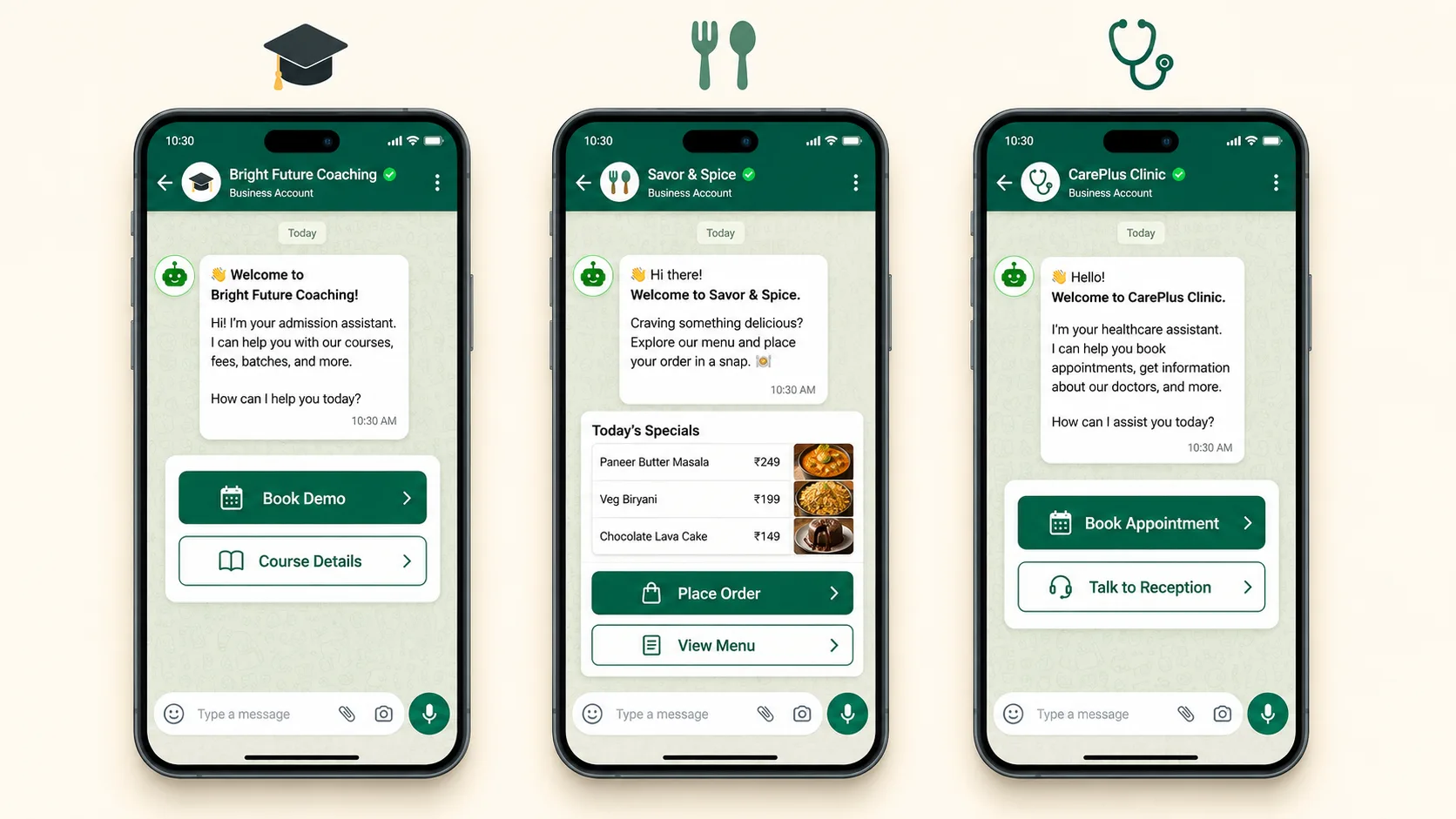
A WhatsApp chatbot can handle enquiries, take orders and bookings, send reminders, answer FAQs, collect leads and hand off to humans — and the exact mix depends on your industry. Across Indian SMBs, the same building blocks are arranged differently for different businesses. Here is what a bot typically does in each sector:
- Coaching institutes: share course details and fees, book demo classes, send class schedules, answer admission FAQs, and capture student leads.
- Restaurants: show the menu, take orders or table bookings, share location and timings, and collect feedback after a meal. See WhatsApp for restaurants.
- E-commerce / D2C: show product catalogues, track orders, recover abandoned carts, and answer "where is my order?" automatically. See WhatsApp for e-commerce.
- Clinics & salons: book and reschedule appointments, send reminders, share prep instructions, and answer service questions. See WhatsApp for clinics.
- Real estate: qualify leads (budget, location, type), schedule site visits, and share property brochures.
- Service businesses: generate quotes, book slots, send invoices, and chase payments politely.
The common thread: the bot handles the repetitive 80% of conversations instantly, freeing your team for the high-value 20% that genuinely needs a person.
Chatbot Use Cases Across Industries (Comparison Table)
This table compares the primary chatbot use case, key trigger, and main message type for six Indian industries, so you can see at a glance how a bot fits your business. Use it to decide which flow to build first.
| Industry | Primary bot job | Main trigger | Typical message type |
|---|---|---|---|
| Coaching institute | Book demo, share fees | Keyword "DEMO" / welcome | Session reply (₹0.20) |
| Restaurant | Take order, table booking | Welcome message | Session reply (₹0.20) |
| E-commerce | Order tracking, cart recovery | Keyword "STATUS" / event | Utility template (Meta ₹0.13 + ₹0.20) |
| Clinic / salon | Appointment booking + reminder | Keyword "BOOK" / time | Utility template (Meta ₹0.13 + ₹0.20) |
| Real estate | Lead qualification | Welcome message | Session reply (₹0.20) |
| Service business | Quote + payment reminder | Keyword "QUOTE" / time | Utility template (Meta ₹0.13 + ₹0.20) |
Notice that most enquiry-style bots run on session replies at just ₹0.20 each (Meta charges nothing inside the 24-hour window), while reminders and order updates that start a new conversation use utility templates at Meta ₹0.13 + PayPerWA ₹0.20 = ₹0.33.
How a No-Code Drag-and-Drop Flow Builder Works
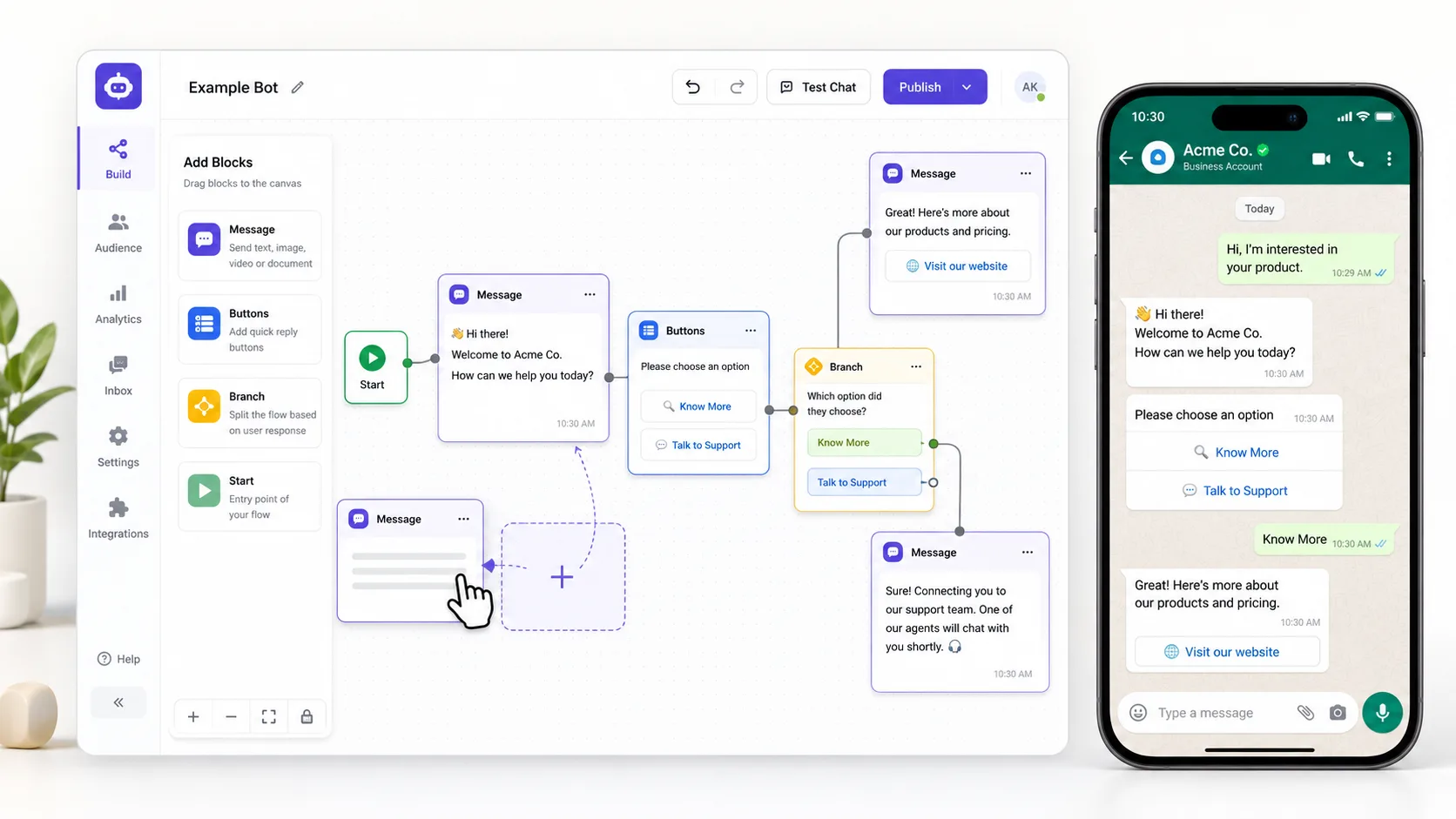
A no-code WhatsApp chatbot builder lets you create a bot by dragging and connecting visual blocks — message, question, button, condition and delay — into a flowchart, with no programming at all. Each block does one thing, and you wire them together to define exactly what the bot says and does at every step.
The core blocks you'll use:
- Message block: sends text, an image, a PDF, or a video to the customer.
- Buttons / list block: gives the customer tappable choices ("View Menu", "Book Table", "Talk to Staff") instead of typing. This is what makes bots feel effortless.
- Question / input block: asks for and saves a customer's answer (name, phone, pincode) into a variable you can reuse.
- Condition / branch block: sends the conversation down different paths based on what the customer tapped or typed.
- Delay block: waits a set time before the next message — useful for drips and follow-ups.
- Handoff block: hands the conversation to a human agent.
You drag a block onto the canvas, type your content, draw a line to the next block, and repeat. PayPerWA's builder shows you a live preview of how the conversation looks on a real phone as you build. For richer multi-step forms (like a full booking form on one screen), you can also use WhatsApp Flows.
Step-by-Step: Build a Restaurant Order Bot (No Code)
You can build a working restaurant order bot in seven steps using only drag-and-drop blocks — here is the exact flow. This sample greets a customer, shows the menu, takes an order, captures their address, and confirms — all automatically.
- Set the welcome trigger. When a customer messages your number for the first time, the bot fires a welcome message block: "Namaste! Welcome to Spice Garden. What would you like to do today?"
- Add a buttons block. Offer three tappable buttons: "View Menu", "Place Order", "Talk to Staff".
- Branch on the choice. A condition block routes each button: "View Menu" sends a menu image/PDF, "Place Order" starts the order flow, "Talk to Staff" triggers handoff.
- Take the order. In the order branch, a list block shows menu items with prices. The customer taps their selections.
- Capture the address. A question block asks "Please share your delivery address" and saves the reply.
- Confirm the order. A message block summarises the order, total, and delivery time, with buttons "Confirm" / "Edit".
- Send the confirmation + handoff. On "Confirm", the bot sends a confirmation and notifies your kitchen/staff. Anything the bot can't handle goes to a human.
For a coaching institute, swap the menu for course options, the address question for "Which class are you interested in?", and the confirmation for a demo-class booking. The building blocks are identical — only the content changes. To push your menu or catalogue to many customers at once, pair the bot with bulk WhatsApp messaging.
Keyword Triggers vs Welcome Triggers: When to Use Each
A welcome trigger fires automatically on a customer's first message, while a keyword trigger fires when a customer sends a specific word — and most effective bots use both together. Choosing the right trigger decides how naturally your bot starts a conversation.
Here is the difference:
- Welcome trigger: the bot's front door. The moment anyone messages "Hi" or anything at all for the first time, the welcome flow greets them and shows the main menu. Use it as your default entry point.
- Keyword trigger: a shortcut. When a customer sends a specific word — "MENU", "PRICE", "STATUS", "BOOK", "STOP" — the bot jumps straight to the matching flow. Great for power users and for printing on flyers ("WhatsApp MENU to 90000-00000").
The best setup combines them: a welcome flow that greets everyone and offers buttons, plus a handful of keyword shortcuts for common intents. Add a catch-all "any reply" branch so that even if the customer types something unexpected, the bot responds gracefully instead of going silent. Learn more in our guide to auto-reply, keyword and welcome automation.
Handing Off to a Human Agent
A human handoff is the point where your chatbot stops and passes the conversation to a real team member — and every good bot needs one so customers are never stuck talking to a machine. Bots are brilliant at the repetitive 80% of queries, but the remaining 20% (a complaint, a custom request, a confused customer) needs a person.
Set up handoff cleanly:
- Always offer an exit. Include a "Talk to a person" button on your main menu and after any failed match, so customers can reach a human in one tap.
- Notify your team. When handoff fires, alert your agents in the shared team inbox so they can jump in fast.
- Pause the bot. Once a human takes over, the bot should stop auto-replying in that conversation to avoid talking over your agent.
- Capture context first. Have the bot collect the customer's name and the gist of their query before handing off, so your agent starts informed.
Remember the 24-hour window: as long as the customer messaged recently, your human agent can reply with free-form session messages at just ₹0.20 each (Meta charges nothing inside the window). A smooth handoff is both better service and lower cost.
What a WhatsApp Chatbot Costs on PayPerWA
On PayPerWA, every chatbot message is billed at a flat ₹0.20 platform fee, and Meta's fee is added separately only when the bot sends a business-initiated template. There is no subscription and no per-bot or per-contact charge — you pay only for messages actually sent.
The breakdown for bot messages:
- Session replies (inside the 24h window): Meta charges ₹0 → you pay only PayPerWA ₹0.20 each. Most enquiry, menu, and FAQ replies fall here.
- Utility templates (order/booking confirmations, reminders): Meta ₹0.13 + PayPerWA ₹0.20 = ₹0.33 each.
- Authentication templates (OTP): Meta ₹0.13 + PayPerWA ₹0.20 = ₹0.33 each.
- Marketing templates (promo broadcasts that open a conversation): Meta ₹0.86 + PayPerWA ₹0.20 = ₹1.06 each.
The automation billing nuance to remember: even when Meta charges nothing inside the 24-hour window, PayPerWA still applies its ₹0.20 platform fee per message. So a 5-message bot conversation inside the window costs 5 × ₹0.20 = ₹1.00, with ₹0 from Meta. Your wallet is prepaid via Razorpay, deductions are atomic, and a balance gate halts the bot if your wallet empties — so you're never billed postpaid. See full rates on the pricing page.
Measuring Chatbot Performance and Avoiding Mistakes
Measure your chatbot by four metrics — resolution rate, handoff rate, completion rate, and cost per conversation — and avoid the classic mistakes of dead-ends, over-automation and poor testing. A bot you don't measure is a bot you can't improve.
The metrics that matter:
- Resolution rate: the share of conversations the bot fully handles without a human. Higher is better.
- Handoff rate: how often the bot escalates to a person. A rising rate signals gaps in your flow.
- Completion rate: the share of customers who finish a flow (e.g. complete an order) versus dropping off mid-way.
- Cost per conversation: total messages × ₹0.20 + any Meta template fees, divided by conversations.
And the mistakes to avoid:
- Dead-end bots with no human exit — always include a handoff.
- Over-automation that forces customers through long menus — keep flows short and offer shortcuts.
- No fallback for unexpected replies — add a catch-all branch.
- Skipping testing — send yourself a full test conversation before going live, checking every button and branch.
- Wrong template category — a confirmation is Utility (₹0.13), not Marketing (₹0.86).
Getting Started: Launch Your First Bot Today
The fastest way to launch a WhatsApp chatbot is to build one simple welcome-plus-menu flow, test it, and go live — you can do it today in under 30 minutes with no code. Start small and expand once it proves its worth.
- Sign up and connect. Create your PayPerWA account and link your WhatsApp number via embedded signup — direct on the Meta Cloud API, no BSP markup.
- Recharge a small wallet. ₹200 covers around 1,000 session messages — plenty to test and launch.
- Build a welcome + menu flow. Greet new customers and offer 3 buttons (e.g. "View Menu", "Book", "Talk to us").
- Add a keyword shortcut and a handoff. Wire one keyword (like "PRICE") and a "Talk to a person" exit.
- Test and switch live. Send yourself a test conversation, confirm every branch works, then turn it on — it now runs 24x7.
From there, layer on order updates, reminders, drip follow-up sequences, and abandoned cart recovery as you grow. There's no subscription, no minimum spend, and full transparent pricing — just ₹0.20 per message plus Meta's pass-through fee. Want the bigger picture first? Read the complete WhatsApp marketing automation guide, then start building free.
Frequently Asked Questions
How do I build a WhatsApp chatbot without coding?+
How much does a WhatsApp chatbot cost in India?+
Do I need the WhatsApp Business API for a chatbot?+
Can a WhatsApp chatbot transfer to a human agent?+
What is the difference between a keyword trigger and a welcome trigger?+
What can a WhatsApp chatbot do for my business?+
How do I measure if my WhatsApp chatbot is working?+
What happens to my chatbot if my wallet runs out?+
Ready to Start WhatsApp Marketing?
No subscription. No monthly fee. Just ₹0.20 per message.
PayPerWA Team
We build India's most affordable WhatsApp marketing platform. No subscriptions, no hidden fees — just 20 paisa per message.