How to Connect WhatsApp to Google Sheets & Automate Messages (2026)
Connect WhatsApp to Google Sheets to auto-send messages from rows, run daily reminders and log replies. Three approaches, an Apps Script example and real costs.
Key Takeaways
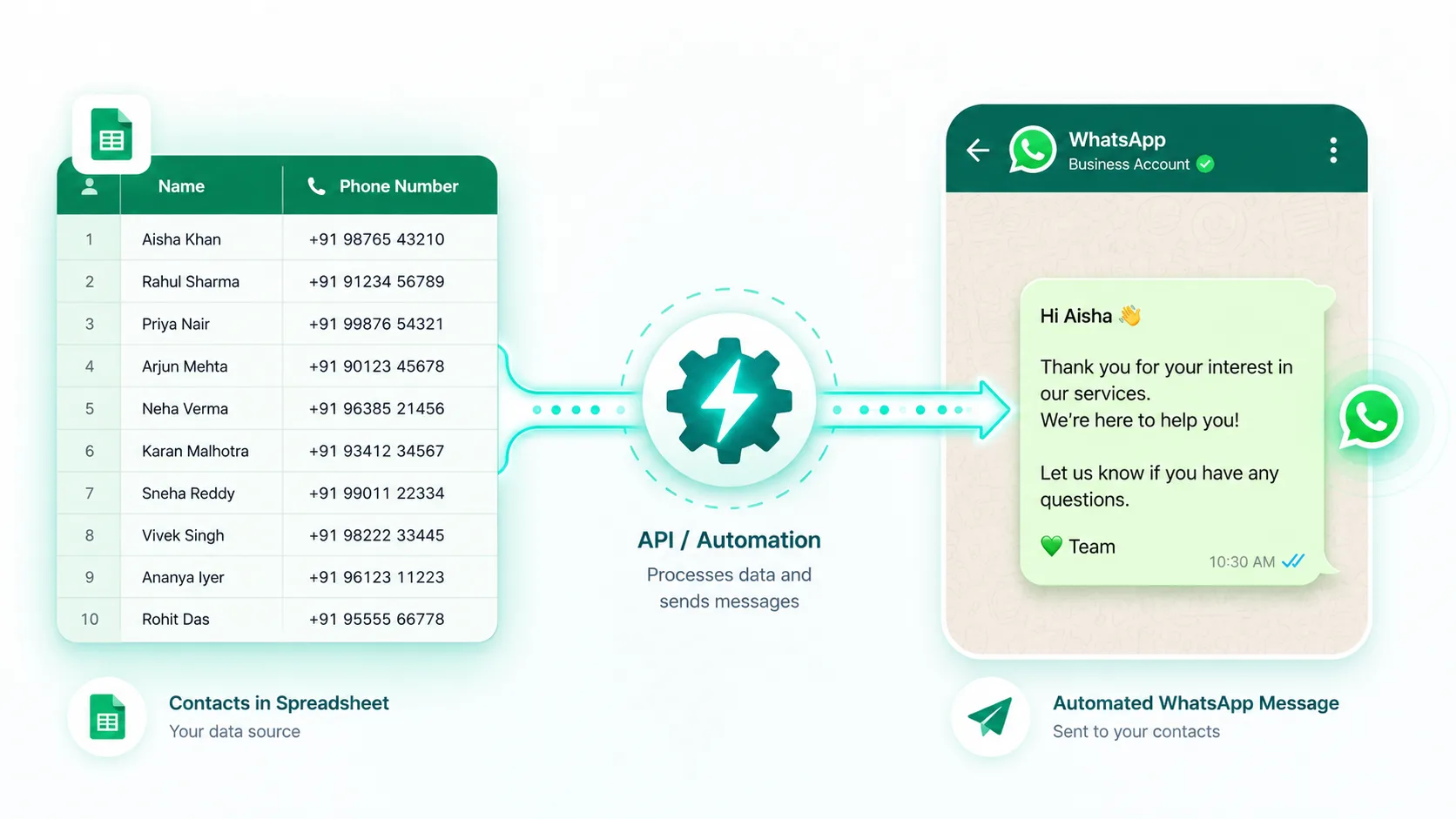
- Google Sheets is the simplest no-code data source for triggering WhatsApp messages to your contacts.
- Three approaches: CSV import, the PayPerWA API with Apps Script, or no-code tools like Zapier, Make or Pabbly.
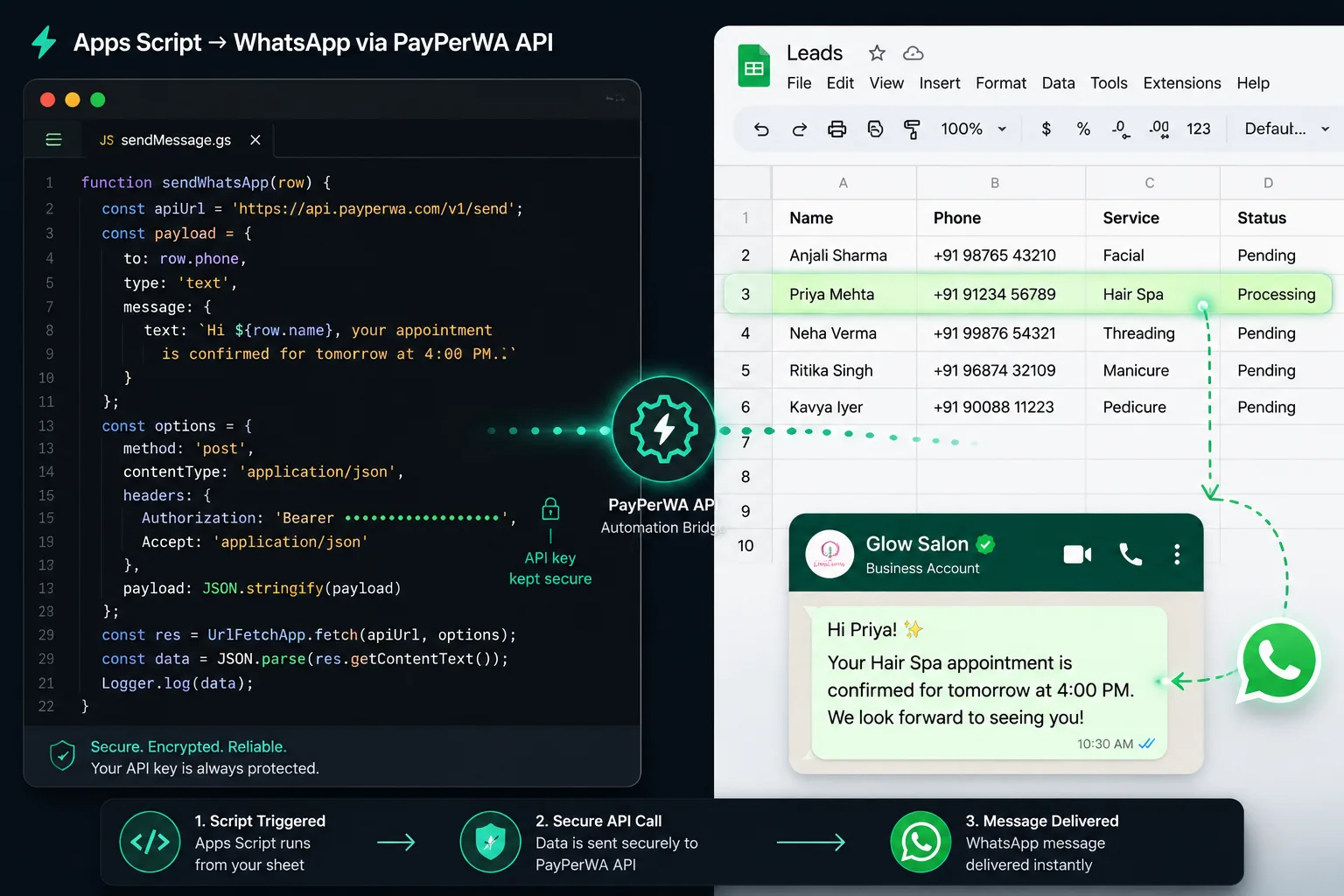
- A single Apps Script function can read a row and send a WhatsApp template through PayPerWA's send API.
- Costs follow the same breakout rule: Meta ₹0.86 for marketing or ₹0.13 for utility, plus PayPerWA ₹0.20.
- Always store API keys in script properties or environment variables, never hardcoded in the sheet.
Why connect WhatsApp to Google Sheets
Connecting WhatsApp to Google Sheets lets you turn a simple spreadsheet into an automated messaging engine, so every new row or scheduled trigger can send a WhatsApp message without manual work. For most Indian small businesses, Google Sheets is already where leads, orders, bookings and customer data live. Wiring it to WhatsApp means your data does the messaging for you.
The appeal is that Sheets is free, familiar and requires no database. Your sales team adds a lead, a form populates a row, or you paste a list, and an automation sends the right WhatsApp message at the right time. There is no app to build and no server to maintain.
Common goals include sending a welcome template to every new lead row, firing daily appointment or payment reminders from a schedule sheet, and logging incoming customer replies back into a sheet for your records. With PayPerWA you pay only ₹0.20 per message plus Meta's standard charge, with no subscription, so a Sheets-driven workflow stays cheap even at scale.
The three ways to connect Sheets to WhatsApp
There are three practical approaches to connect Google Sheets to WhatsApp, ranging from zero-code to a light script, and the right one depends on your volume and technical comfort. Here is how they compare.
| Approach | Effort | No-code? | Best for |
|---|---|---|---|
| 1. CSV import to PayPerWA | Lowest | Yes | One-off bulk campaigns from a static list |
| 2. PayPerWA API + Apps Script | Medium | No (light code) | Live triggers, full control, free Google tooling |
| 3. Zapier / Make / Pabbly | Low | Yes | Connecting many apps without writing code |
If you just want to message a fixed list once, use CSV import. If you want real automation that reacts to new rows or runs on a schedule, use Apps Script or a no-code tool. We cover all three below. For broader patterns, see our WhatsApp marketing automation guide.
Approach 1: CSV import (the no-code starting point)
The simplest way to send WhatsApp from a Google Sheet is to export it as CSV and import it into PayPerWA, which needs zero code or integrations. This is ideal when you have a one-time list, such as event attendees or a promotional segment, and want to send a single campaign.
The steps are:
- In Google Sheets, arrange columns for name, phone number, and any template variables.
- Go to File, Download, Comma-separated values (.csv).
- In PayPerWA, open Contacts, Import, and upload the CSV.
- Map the columns to contact fields and custom fields.
- Create a campaign, pick your approved template, and send.
Cost: the same breakout rule applies. A marketing campaign costs Meta ₹0.86 + PayPerWA ₹0.20 = ₹1.06 per message, and a utility campaign costs Meta ₹0.13 + PayPerWA ₹0.20 = ₹0.33. The downside is that it is manual and static. For anything that should run automatically, move to approach 2 or 3.
Approach 2: PayPerWA API with Google Apps Script
The most flexible and free way to automate WhatsApp from Google Sheets is Google Apps Script calling the PayPerWA send API, which lets a spreadsheet send messages on triggers you control. Apps Script is built into every Google Sheet, runs on Google's servers at no cost, and can react to new rows, run on a daily schedule, or fire from a button.
The flow is straightforward: your script reads a row, builds a request with the contact's number and template details, and sends it to PayPerWA's API endpoint with your API key in the header. PayPerWA queues the message and delivers it through the Meta Cloud API. Full endpoint details are in the API documentation.
Here is a small illustrative script that reads the first unsent row and sends a template:
function sendWhatsAppFromSheet() {
  const sheet = SpreadsheetApp.getActiveSheet();
  const data = sheet.getDataRange().getValues();
  const apiKey = PropertiesService
    .getScriptProperties()
    .getProperty('PAYPERWA_API_KEY');

  for (let i = 1; i < data.length; i++) {
    const name = data[i][0];
    const phone = data[i][1];
    const status = data[i][2];
    if (status === 'SENT') continue;

    const payload = {
      to: phone,
      template: 'welcome_lead',
      variables: { name: name }
    };

    const res = UrlFetchApp.fetch(
      'https://payperwa.com/api/v1/messages/send',
      {
        method: 'post',
        contentType: 'application/json',
        headers: { 'Authorization': 'Bearer ' + apiKey },
        payload: JSON.stringify(payload),
        muteHttpExceptions: true
      }
    );

    if (res.getResponseCode() === 200) {
      sheet.getRange(i + 1, 3).setValue('SENT');
    }
  }
}
This script loops through rows, skips any already marked SENT, sends the template for the rest, and writes SENT back so the same contact is never messaged twice. You can attach it to an onChange trigger for new rows or a time-driven trigger for a daily run.
Approach 3: No-code tools like Zapier, Make and Pabbly
If you prefer never to touch code, no-code automation platforms like Zapier, Make and Pabbly Connect can link Google Sheets to PayPerWA's API using visual workflows. These tools let you build a trigger-and-action automation by clicking through menus instead of scripting.
A typical no-code workflow looks like this:
- Trigger: New row added in a Google Sheet.
- Action: Send an HTTP POST request to PayPerWA's send API (a Webhooks or HTTP module), passing the row's phone and variables.
- Optional: Update the row to mark it sent.
Pabbly Connect is especially popular in India because of its one-time pricing, while Zapier and Make offer the widest app catalogues. The trade-off versus Apps Script is a monthly fee for the automation tool itself, on top of your PayPerWA message costs. Choose this route if you want to connect many apps together, not just Sheets and WhatsApp. PayPerWA's webhooks and API work with all three.
Use case: send a template to every new row
The most common Sheets-to-WhatsApp automation is messaging every new lead the moment their row is added, which gives a fast, professional first touch. When a website form, ad lead or manual entry creates a row, an automation instantly sends a welcome template.
Example welcome message:
- Hi Rahul, thanks for your interest in FitZone Gym! Our team will call you shortly. Meanwhile, reply MENU to see our membership plans and trial offer.
How it works: an onChange trigger in Apps Script, or a New Row trigger in Zapier, fires the moment the row appears. The script sends the welcome template via the PayPerWA API and marks the row SENT. Because this is a business-initiated marketing message, it costs Meta ₹0.86 + PayPerWA ₹0.20 = ₹1.06. If the lead replies, your follow-ups within 24 hours are free from Meta and only ₹0.20 from PayPerWA. This is the backbone of fast lead response, similar to our welcome automation guide.
Use case: daily reminders from a schedule sheet
A schedule sheet plus a daily time-driven trigger is a powerful way to send appointment or payment reminders automatically without any campaign tool. Keep a sheet where each row has a date, name, number and reminder text. A script that runs every morning sends reminders for rows due that day.
Example reminder:
- Reminder: your dental check-up at SmileCare is today at 11:00 AM. Reply CONFIRM or call us to reschedule.
How it works: set an Apps Script time-driven trigger to run, say, at 8 AM daily. The script filters rows where the date equals today and sends each a utility reminder. These cost Meta ₹0.13 + PayPerWA ₹0.20 = ₹0.33 each, the cheapest message type. This pattern works beautifully for clinics, salons and tuition centres. See our deep dive on appointment reminder automation.
Use case: log incoming replies back to a sheet
You can also push data in the other direction by logging every incoming WhatsApp reply into a Google Sheet using PayPerWA webhooks, giving you a live record of conversations. Instead of Sheets sending messages, here PayPerWA notifies your sheet whenever a customer replies.
The flow is:
- Deploy a Google Apps Script web app, or a Zapier or Make webhook, that receives POST data and appends a row.
- In PayPerWA, set this URL as your incoming-message webhook.
- When a customer replies, PayPerWA sends the message details to your webhook, which writes name, number, text and timestamp into the sheet.
This is invaluable for tracking lead responses, survey answers or keyword replies in one place your whole team can see. There is no per-message Meta cost for receiving, and customer-initiated replies you answer within 24 hours are free from Meta, costing only the ₹0.20 PayPerWA platform fee. The full webhook payload format is in the docs.
Understanding the costs
Connecting Sheets to WhatsApp does not change PayPerWA's pricing, the same transparent breakout rule applies to every message your automation sends. There is no subscription and no extra fee for using the API or webhooks.
| Message sent from your sheet | Meta fee | PayPerWA fee | Total |
|---|---|---|---|
| Marketing template (welcome, promo) | ₹0.86 | ₹0.20 | ₹1.06 |
| Utility template (reminder, confirmation) | ₹0.13 | ₹0.20 | ₹0.33 |
| Auth template (OTP) | ₹0.13 | ₹0.20 | ₹0.33 |
| Session reply within 24h window | FREE | ₹0.20 | ₹0.20 |
One nuance worth knowing for automated flows: Meta only charges on business-initiated template messages. A reply you send inside the customer's 24-hour window has no Meta fee, but PayPerWA still applies its ₹0.20 platform fee per message. If you only ever send a few template categories, your cost is fully predictable. Top up your prepaid wallet via UPI on the pricing page.
Keep your API keys secure
The single most important security rule is to never hardcode your PayPerWA API key in the spreadsheet or share it in a cell, because anyone with access to the sheet could then send messages on your account. Treat the key like a password.
- In Apps Script, store the key in Script Properties (Project Settings, Script Properties) and read it with PropertiesService, exactly as shown in the example above. It never appears in the sheet or the visible code.
- In Zapier, Make or Pabbly, store the key in the connection or environment settings, not in a plain text step.
- Never commit keys to public repositories or paste them into chat or email.
- Rotate the key from your PayPerWA dashboard if you ever suspect it leaked, which instantly invalidates the old one.
Following these rules keeps your wallet and your customer data safe even if many people can view the underlying sheet. PayPerWA lets you generate and revoke API keys from the dashboard at any time. Review the security notes in the API documentation.
Limits and best practices
To keep a Sheets-to-WhatsApp automation reliable and compliant, follow a few best practices that prevent errors, duplicate sends and Meta penalties.
- Always mark rows as sent. Write a SENT status back so re-runs never message the same person twice.
- Respect WhatsApp's rate limits. PayPerWA's queue handles up to 80 messages per second, but Apps Script has its own quotas, so batch large sends.
- Validate phone numbers in E.164 format with the country code, for example 919876543210, before sending.
- Use approved templates for all business-initiated messages, and pick the correct category to control cost.
- Honour opt-outs. PayPerWA blocks contacts who reply STOP automatically, so never override that in your script.
- Test with a small batch of your own numbers before sending to the full list.
For very high volume or complex logic, the API approach gives you the most control, while no-code tools are perfect for getting started quickly. Either way, PayPerWA handles delivery, retries and opt-out compliance for you. See more controls on the features page.
Getting started in 10 minutes
You can have a working Google Sheets to WhatsApp automation running in about 10 minutes by combining a free PayPerWA account with a short Apps Script. Here is the fastest path:
- Sign up free at payperwa.com and verify your number.
- Connect your WhatsApp number via Embedded Signup in about 2 minutes.
- Create and submit a template (for example, a welcome message) for Meta approval.
- Generate an API key from your PayPerWA dashboard.
- Open Extensions, Apps Script in your Google Sheet, paste the example script, and save the key in Script Properties.
- Run it once with your own number to test, then add a trigger for live automation.
Because PayPerWA is prepaid with no subscription, you only pay for the messages your sheet actually sends. Start with a small wallet recharge, prove the workflow, then scale. If you want to go beyond Sheets, the same API powers reminders for clinics, gyms and salons and spas.
Frequently Asked Questions
Can I send WhatsApp messages directly from Google Sheets?+
Do I need coding skills to connect WhatsApp to Google Sheets?+
How much does it cost to send WhatsApp from Google Sheets?+
Is it safe to put my API key in Google Sheets?+
Can I log WhatsApp replies back into a Google Sheet?+
What is the best tool: Apps Script, Zapier, Make or Pabbly?+
Can Google Sheets send daily WhatsApp reminders automatically?+
Will the same person get messaged twice if my script re-runs?+
Ready to Start WhatsApp Marketing?
No subscription. No monthly fee. Just ₹0.20 per message.
PayPerWA Team
We build India's most affordable WhatsApp marketing platform. No subscriptions, no hidden fees — just 20 paisa per message.